Smart Clip — Clipboard Manager for Windows
- Save your entire clipboard history
- No need to switch windows
- Paste from your clipboard history
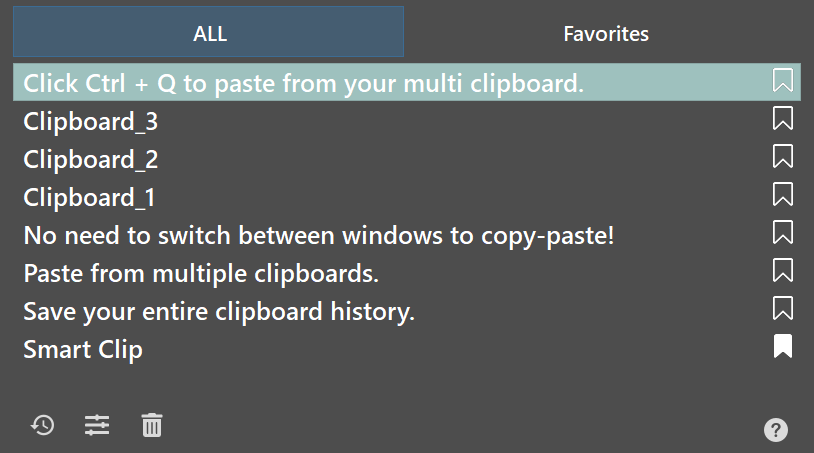
Everything you copy — always within reach.

Automatically saves everything you copy — text, links, HTML, images, and screenshots — to your clipboard history.

Paste any item from your clipboard history instantly — without switching windows or losing focus.

Browse and search your full clipboard history. Find anything you copied — even hours or days ago.

Press Ctrl+Q to open the clipboard panel and select what to paste — all with keyboard shortcuts.
What is Smart Clip?
Smart Clip is a clipboard manager for Windows that saves your full clipboard history and lets you paste any copied item instantly — without switching windows. Copy with Ctrl+C as usual, press Ctrl+Q to open the panel, and pick what you need. Smart Clip saves everything you copy — text, links, HTML, images, and screenshots — and gives you fast access to any item at any time.
Whether you’re a developer, accountant, teacher, writer, or customer support agent — anyone who copies and pastes throughout the day will save real time with a clipboard manager for Windows.
Smart Clip is used daily by:
How to Use Smart Clip
Smart Clip saves everything you copy and lets you quickly paste any of your previous items.
-
1
Copy as usual
Every time you copy something Smart Clip adds it to your history automatically. Nothing extra to do.
-
2
View All Copied Items — Ctrl + Q
Press Ctrl+Q to open the Smart Clip Panel. Release Q but keep holding Ctrl while selecting clips to paste.
-
3
Select an Item
Pick from your history in whichever way feels fastest:
MouseClick the item you want to paste.
Arrow keysMove with the ↑ ↓ keys.
Q keyHolding Ctrl, tap Q again to step down the list.
-
4
Release Ctrl to Paste
Let go of Ctrl and Smart Clip instantly pastes the selected item. The panel closes on its own.
Search anything
Press Ctrl+Q, click the Search icon, then start typing — the list filters instantly. Find any copied text in seconds.
Full clipboard history
Click the tray icon  to open the History window and browse everything you’ve ever copied.