CopyQ Alternative for Windows
Looking for a CopyQ Alternative?
CopyQ is powerful — but for most people it’s too complex to configure. If you want a clipboard manager that just works — with hotkey paste, clipboard history search, image support, and no scripting — Smart Clip is the simpler, smarter choice.
Try Smart Clip Free See Pricing14-day free trial · No credit card required
CopyQ vs Smart Clip — Feature Comparison
See how Smart Clip compares to CopyQ clipboard manager on Windows
| Feature | CopyQ | Smart Clip |
|---|---|---|
| Clipboard history | ||
| Search through history | ||
| Paste without switching windows | Ctrl+Q | |
| Simple setup — no scripting | scripting required | |
| Favorites (pinned items) | ||
| Windows-focused & optimised | cross-platform | |
| Beginner-friendly, zero config | ||
| Modern, clean UI | ||
| Saves images & screenshots | ||
| Price | Free | Free trial · from $3.95 |
Why People Switch from CopyQ to Smart Clip
No Configuration Needed
CopyQ is packed with scripting, commands, and configuration tabs. Most users never use 80% of it — and spend hours figuring out the rest. Smart Clip works the moment you install it. Copy with Ctrl+C, paste with Ctrl+Q. That’s it.
Paste Without Losing Focus
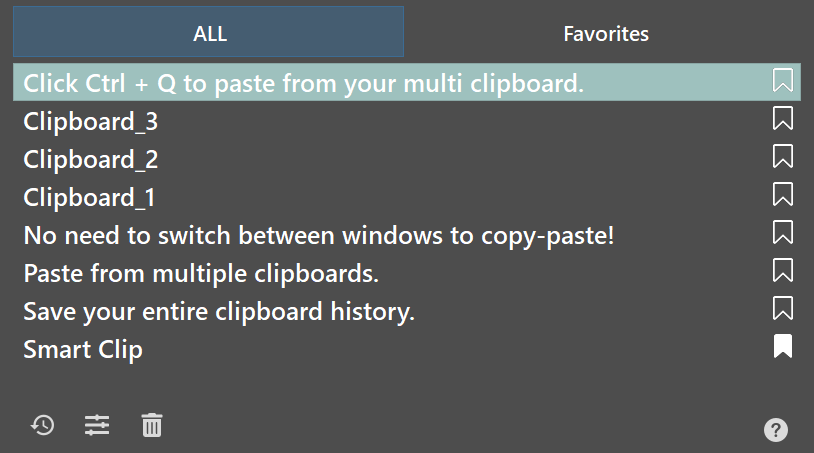
CopyQ opens as a separate window — you have to switch away from what you’re doing. Smart Clip’s Ctrl+Q panel appears right in context, you pick what you need, and it pastes instantly. Zero interruption to your workflow.
Favorites Tab
Smart Clip’s Favorites let you pin your most-used snippets, templates, and replies permanently. Customer support agents, writers, developers — anyone who reuses the same text daily will save hours every week.
Built for Windows
CopyQ is cross-platform, which means it’s a compromise on every platform. Smart Clip is designed and optimized exclusively for Windows 10 and 11 — the hotkeys feel native, the UI looks right, and everything integrates naturally.
I tried CopyQ but it felt like setting up a development environment just to paste text. Smart Clip was running in 30 seconds and I haven’t thought about it since — it just works, every single day.
— David R., Customer Support
How Smart Clip Works

1. Copy as usual
Use Ctrl+C as always. Smart Clip automatically saves everything — text, links, and images — to your clipboard history.

2. Press Ctrl+Q
Open the Smart Clip panel instantly with Ctrl+Q. No window switching, no losing your place.

3. Select & Paste
Use arrow keys, mouse, or type to search. Press Enter — the item is pasted instantly.
No credit card required. Works on Windows 10 & 11.