How to Use Smart Clip
Save your clipboard history and paste anything in seconds — without switching windows
Getting Started
Up and running in under 2 minutes — no configuration needed.
Step 1 – Download
Download Smart Clip and run the installer. Done in under a minute.
Step 2 – Copy as Usual
Use Ctrl+C in any app. Smart Clip captures everything automatically in the background.
Step 3 – Paste with Ctrl+Q
Press Ctrl+Q anywhere to open your clipboard list and select what to paste.

Smart Clip runs quietly in the system tray — no setup needed after install
How to Copy
No new habits needed — just use Ctrl+C as always.
- Select the text, image, or content you want to save.
- Press Ctrl+C as usual.
- Smart Clip saves it automatically — nothing else to do.
The Clip Panel
Press Ctrl+Q to open your clipboard list instantly — on top of any window, without losing focus.
The Clip Panel appears over any open app. Place your cursor where you want to paste, then open the panel and pick your item.
- Click where you want to paste (in any app, browser, or document).
- Press Ctrl+Q — and keep holding Ctrl to keep the panel open.
- Release Q, then press Q again or use ↑↓ to navigate the list, or click with the mouse.
- Release Ctrl — the selected item pastes instantly and the panel closes.
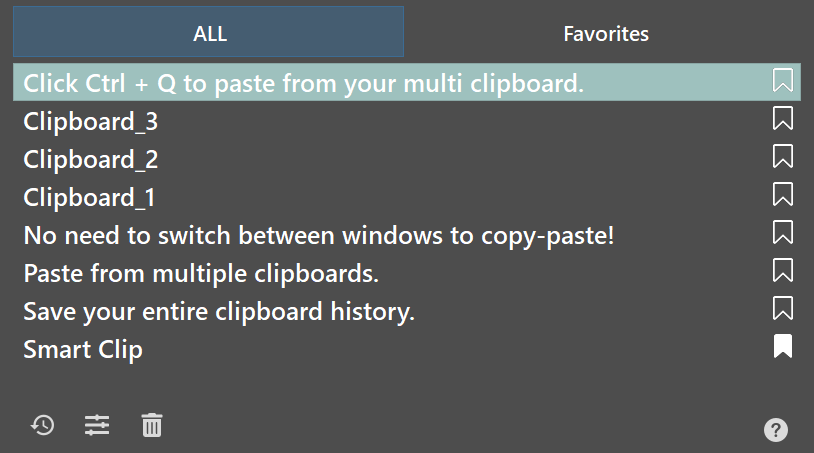
The Clip Panel appears instantly over any app
Pin the Clip Panel
Keep the panel open without holding Ctrl — browse, search, or manage favorites at your own pace.
By default, the Clip Panel closes as soon as you release Ctrl. Click the pin button to keep it open — you can then freely search, browse, and paste multiple items without reopening the panel each time.
- Press Ctrl+Q to open the Clip Panel.
- Click the pin button near the close button (top-right of the panel).
- The panel stays open — release Ctrl freely.
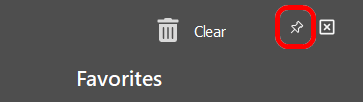
Pin button keeps the panel open without holding Ctrl
What you can do in pinned mode:
- Browse and scroll the clipboard list without time pressure.
- Search for any item by typing.
- Switch to the Favorites tab and manage pinned items.
- Keep the panel always visible on screen as a reference.
Favorites
Pin items you use often — they stay forever and are never deleted when you clear history.
Favorites are for things you paste repeatedly: email signatures, your address, support templates, code snippets, or any recurring text.
How to pin an item:
- Press Ctrl+Q to open the Clip Panel.
- Find the item you want to keep handy and click the star icon next it.
- The item is added to the Favorites tab.
Accessing favorites when pasting:
- Press Ctrl+Q to open the Clip Panel.
- Switch to the Favorites tab.
- Select and paste as usual.
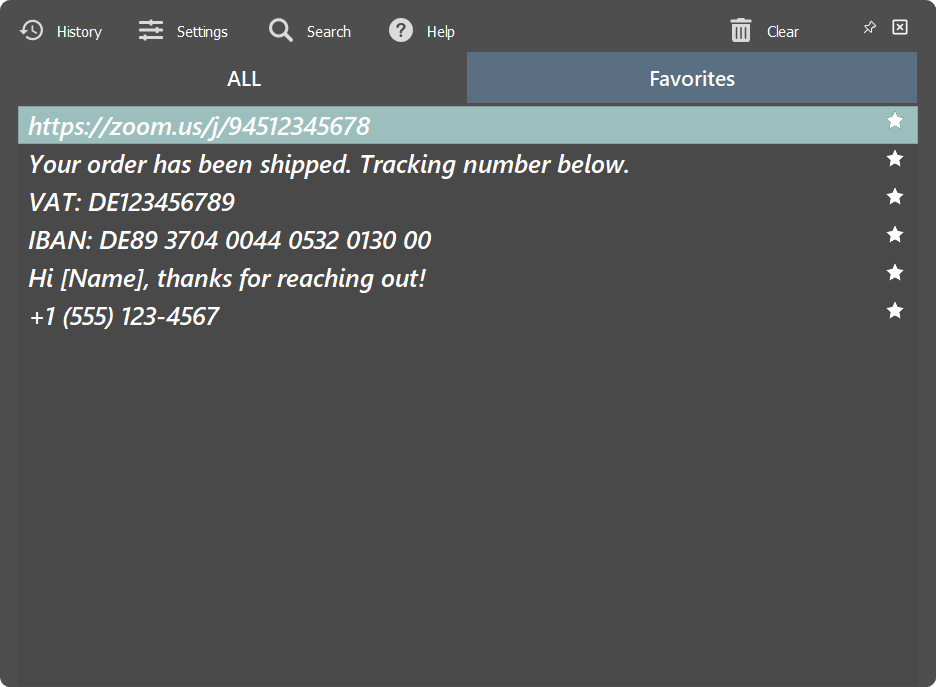
Pinned items in the Favorites tab
Clipboard History
Browse, search, and manage everything you’ve ever copied.
The clipboard history window shows all items you’ve copied since Smart Clip was installed, sorted from newest to oldest.
How to open:
- Click the Smart Clip icon in the system tray.
- Or double-click the Smart Clip shortcut on your desktop.
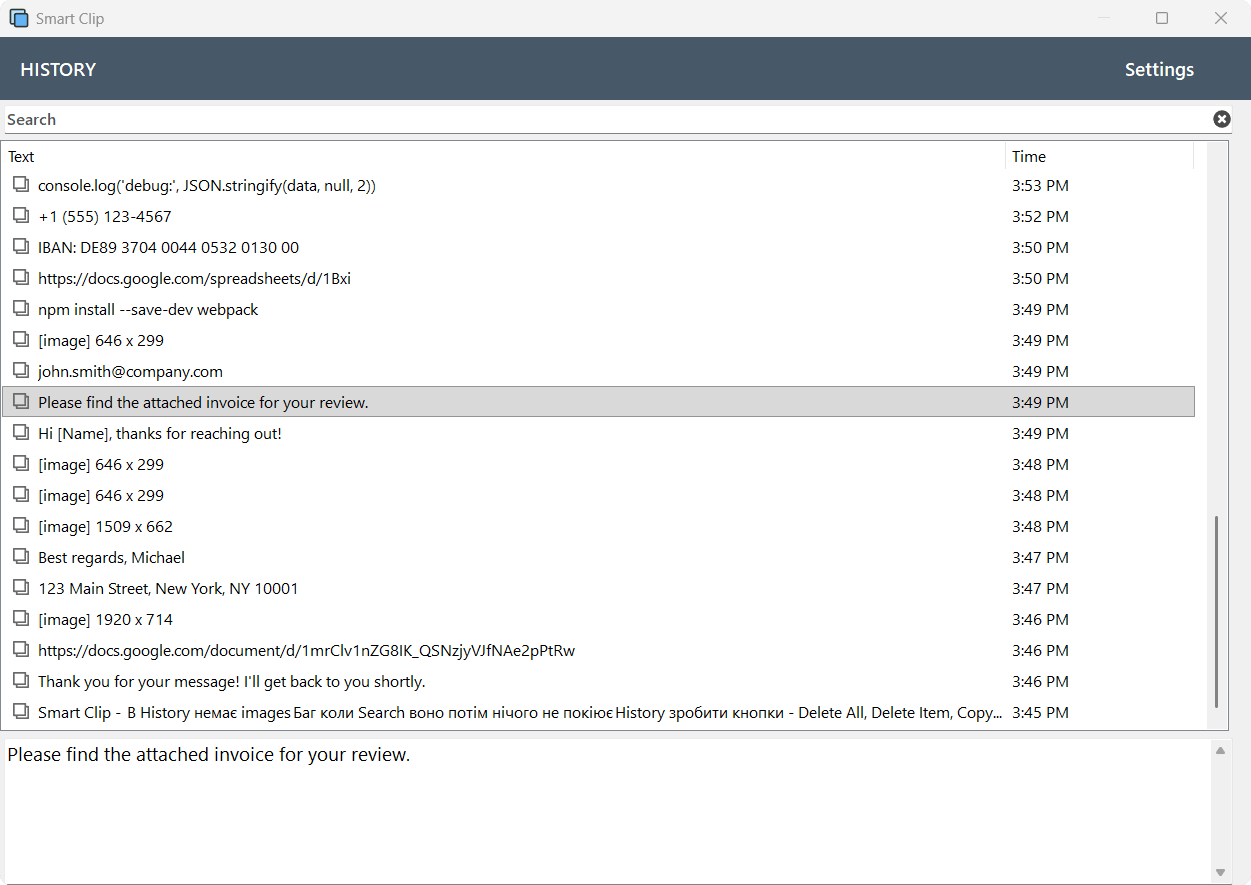
Full clipboard history window
What you can do here:
- Browse all copied items sorted by time.
- Search through the full history.
- Double-click any item to copy it to the clipboard.
- Delete individual items or clear everything.
Search
Find any copied item instantly — the list filters as you type.
In the Clip Panel
Press Ctrl+Q, click the Search icon, then start typing — the list filters in real time.
- Press Ctrl+Q to open the Clip Panel.
- Click the Search icon to activate the search field.
- Start typing any word — the list filters in real time.
- Select the result and paste.
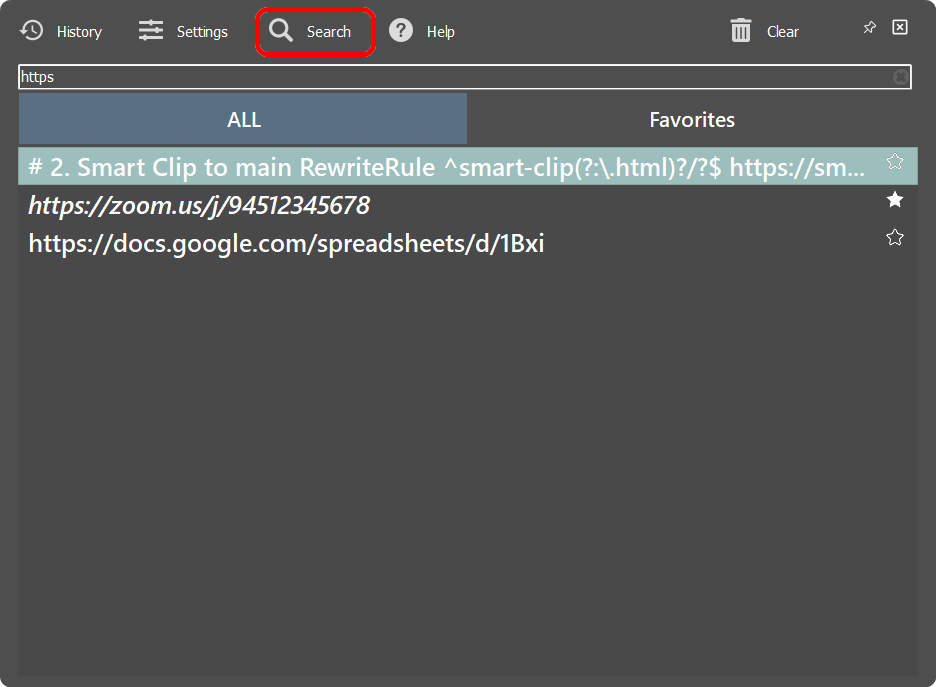
Search in the Clip Panel
In the History Window
Open the full history window and use the search bar at the top to browse older items.
- Open the Smart Clip history window.
- Type in the Search field — the list updates instantly.
- Double-click the result to copy it, then paste with Ctrl+V.
Delete & Clear
Remove individual items or wipe the entire history at once.
Delete a Single Item
Use this to remove accidentally copied passwords, private messages, or anything you don’t want to keep.
- Open the history window.
- Right-click the item you want to remove.
- Select Remove from the menu.
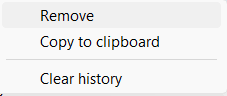
Right-click → Remove
Clear All History
Remove everything at once — useful for privacy or to start fresh.
- Open the history window.
- Right-click → Clear History.
- Confirm when prompted.
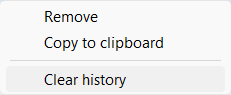
Clear all history
Tray Icon & Settings
Quick access from the system tray — and a few settings worth knowing.
System Tray Icon
Smart Clip runs in the Windows system tray (bottom-right of the taskbar). Click the icon to open the right-click menu:
- History — open the clipboard history window.
- Settings — open the settings window.
- Show notifications — toggle clipboard change notifications on/off.
- Clear the clipboard stack — delete all items from history at once.
- Help — open the How to Use guide.
- About — version info.
- Quit SmartClip — exit the program.
Settings
Right-click the tray icon → Settings. The settings window has the following options:
- Run the program when Windows starts — Smart Clip launches automatically on startup.
- Show the clipboard change notifications — show a small notification each time an item is saved.
- Swap hotkey — change Ctrl+Q to any key combination you prefer.
- Copy to the clipboard by moving the mouse to the top left corner — alternative trigger for saving items.
- Clipboard stack size — how many items to keep in history (default: 1000).
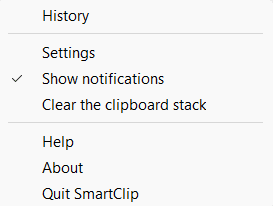
Right-click the tray icon
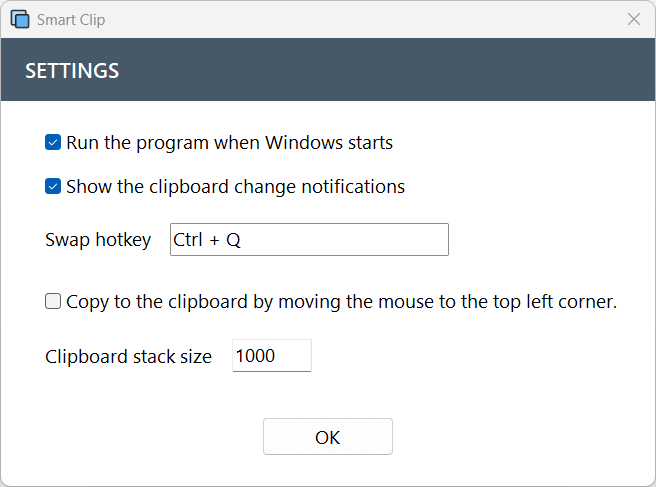
Settings window
Haven’t tried Smart Clip yet?
Start your free 14-day trial — no credit card required.