Ditto Alternative for Windows
Looking for a Ditto Alternative?
Ditto gets the job done — but if you want a modern UI, clipboard history search, hotkey paste without switching windows, and full support for images and screenshots, Smart Clip is the upgrade you’re looking for.
Try Smart Clip Free See Pricing14-day free trial · No credit card required
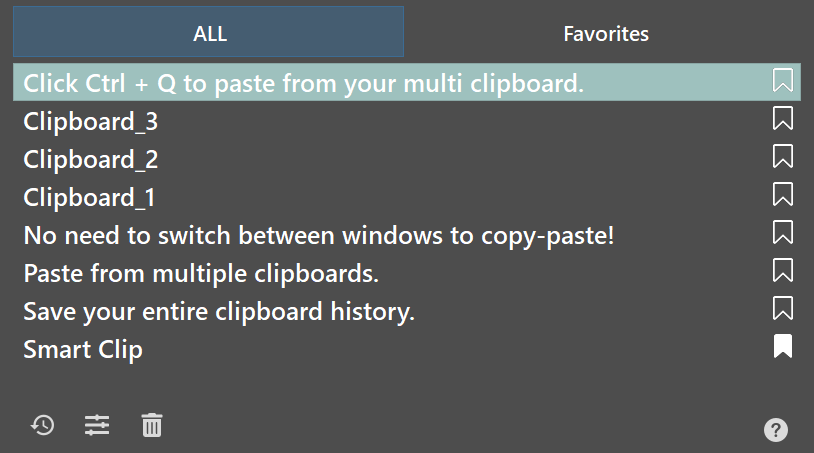
Ditto vs Smart Clip — Feature Comparison
See how Smart Clip compares to Ditto clipboard manager
| Feature | Ditto | Smart Clip |
|---|---|---|
| Clipboard history | ||
| Search through history | ||
| Paste without switching windows | Ctrl+Q | |
| Modern, clean UI | ||
| Favorites (pinned items) | ||
| Works on Windows 10 & 11 | ||
| Active development & support | rarely updated | |
| Simple setup — works out of the box | complex settings | |
| Saves images & screenshots | ||
| Price | Free | Free trial · from $3.95 |
Why People Switch from Ditto to Smart Clip
Paste Without Losing Focus
With Ditto, you have to switch to its window to pick an item. Smart Clip’s Ctrl+Q panel opens right where you’re working — select an item, it pastes instantly, and you’re back in your flow. No window switching, no lost focus.
Favorites Tab
Ditto doesn’t have a dedicated Favorites feature. Smart Clip lets you pin your most-used text snippets, templates, and links to the Favorites tab — so frequently used items are always one hotkey away.
Modern Interface
Ditto’s UI looks like it was built in 2005 — because it largely was. Smart Clip has a clean, modern Windows 11-style interface that’s comfortable to use every day.
Works Out of the Box
Ditto requires configuring network shares, databases, and sync options before it feels usable. Smart Clip installs in 30 seconds and works immediately — no setup needed.
I used Ditto for years and it was fine. But Smart Clip’s Ctrl+Q hotkey that pastes without switching windows changed how I work completely. I use it 200 times a day and can’t imagine going back.
— Michael T., Power User
How Smart Clip Works

1. Copy as usual
Use Ctrl+C as always. Smart Clip automatically saves everything — text, links, and images — to your clipboard history.

2. Press Ctrl+Q
Open the Smart Clip panel instantly with Ctrl+Q. The panel appears right where you’re working — no window switching.

3. Select & Paste
Use the arrow keys, mouse, or search to find an item. Press Enter — the item is pasted instantly.
No credit card required. Works on Windows 10 & 11.