Clipboard History for Windows
Smart Clip saves your complete clipboard history — automatically.
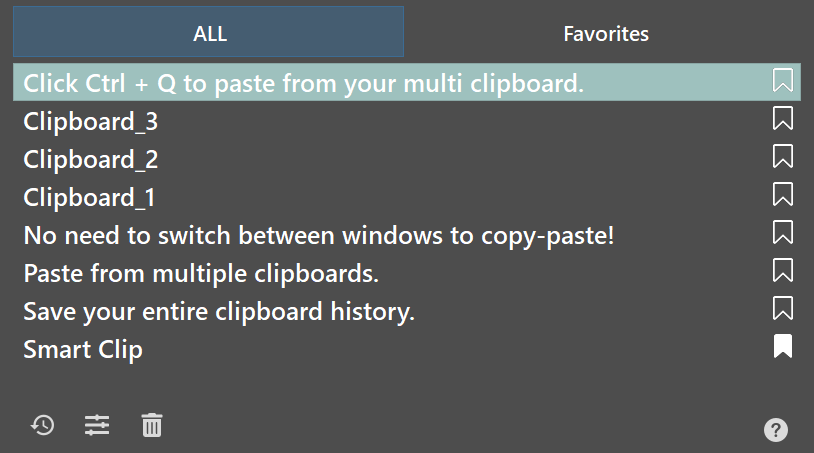
Every Ctrl+C is captured and stored. Your history is searchable, survives restarts, and opens instantly with Ctrl+Q — right over your current window.
Try Smart Clip Free14-day free trial · No credit card required
History
All saved
Paste
No switch
Images
Captured
Everything you copy is saved automatically
Smart Clip works in the background. Copy as usual — Smart Clip captures and stores your clipboard history silently and continuously.
Full Clipboard History
Every text, link, image, and screenshot you copy is stored — in order, even after restart. Scroll through your entire copy history anytime.
Search Your History
Type a word or phrase and Smart Clip finds it instantly in your clipboard history — no scrolling through long lists.
Favorites
Pin your most-used snippets, templates, addresses, and links to the Favorites tab — always one Ctrl+Q away.
Windows has clipboard history — but it's basic
Windows 10 and 11 include built-in clipboard history since the October 2018 update. Turn it on in Settings → System → Clipboard and open it with Win+V. It stores a short recent list of items you've copied.
That's useful for occasional copying. For people who copy, search, and paste many times a day — it's not enough.
Windows clipboard history (Win+V) limitations:
- History clears on restart by default
- No dedicated search across history
- No Favorites or permanent snippets
- Panel requires switching focus
- Limited number of stored items
Why people switch to Smart Clip
You don't need another tutorial for Win+V. You need a clipboard history that keeps working after the list gets long.
Too much scrolling
When copied items pile up, scrolling a basic list is slower than copying the same text again. Smart Clip lets you search instantly.
History disappears
Windows clipboard history clears on restart by default. Smart Clip history persists between sessions — nothing is ever lost.
Context switching
Smart Clip opens with Ctrl+Q right over your current app — finding and pasting feels like part of the same action.
Windows Clipboard History vs Smart Clip
Both save copied items — Smart Clip is built for daily heavy use
| Feature | Windows (Win+V) | Smart Clip |
|---|---|---|
| Clipboard history | ||
| History survives restart | cleared by default | |
| Search through history | ||
| Paste without switching windows | Ctrl+Q | |
| Favorites (permanent snippets) | ||
| Saves images & screenshots | ||
| Works on Windows 10 & 11 | ||
| Best for | Occasional copying | Daily heavy copy-paste work |
How Smart Clip Works

1. Copy as usual
Use Ctrl+C as always. Smart Clip automatically saves everything to your clipboard history — text, links, images, and screenshots.

2. Press Ctrl+Q
Open your clipboard history panel instantly with Ctrl+Q. It appears right over your current window — no switching, no losing focus.

3. Find & Paste
Scroll or type to search your clipboard history. Press Enter — the item is pasted instantly and you're back in your flow.
No credit card required. Works on Windows 10 & 11.
Start saving your clipboard history today
Download Smart Clip and never lose a copied item again. Search, save Favorites, and paste from your history with Ctrl+Q.
FAQ
Questions about clipboard history on Windows and how Smart Clip works.